 Relay
Relay
Relay
Local file transfer between Windows and Android.
Relay sends files directly between your PC and your phone over the same
Wi-Fi network or hotspot.
No cloud storage, No account, and No internet server in between.
Windows installer and Android APK, published as a GitHub Release with checksums included.
How Relay works
Three steps between opening the app and sending your first file.
All of it stays on your own network.
-
Discover
Open Relay on your PC and phone while they're on the same Wi-Fi network or hotspot. The Android app finds the desktop automatically, there's no IP address to type in.
-
Pair
Scan the QR code shown on the desktop. Relay asks you to approve the request on the PC before the phone is trusted, nothing connects without that confirmation.
-
Transfer
Send or receive files and folders directly between the two devices. Transfers move straight over the local network - no server or cloud storage sits in between.
See Relay in action
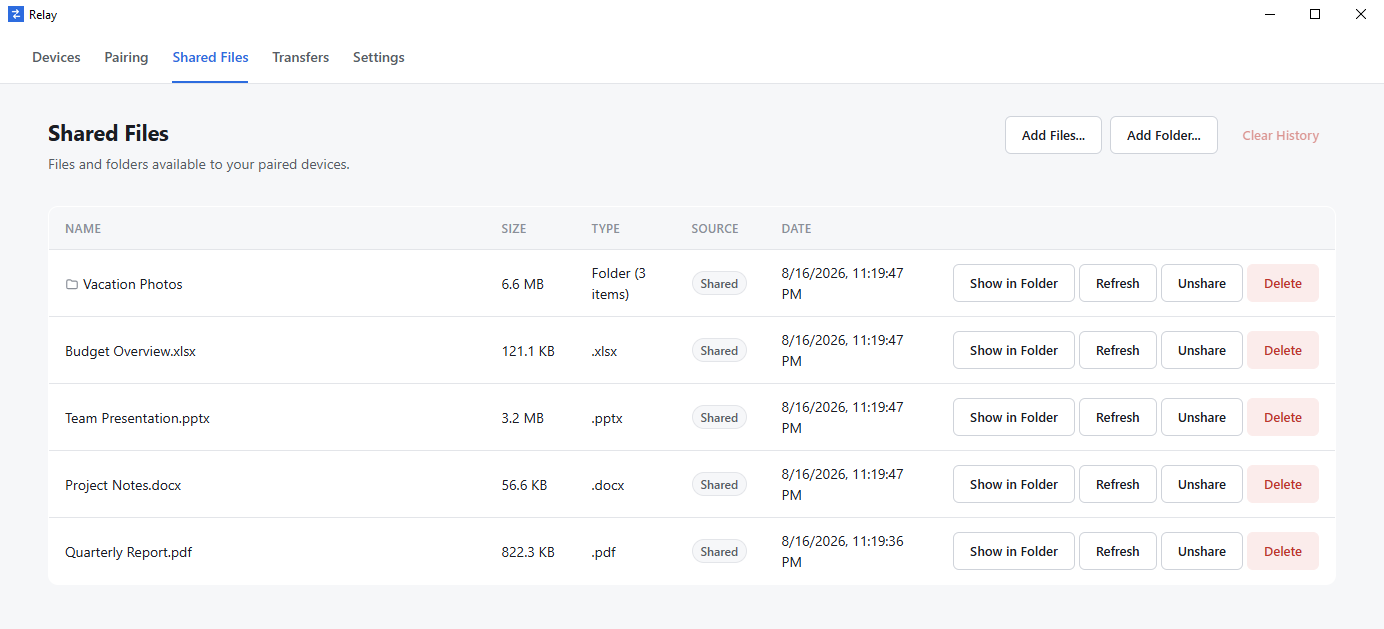
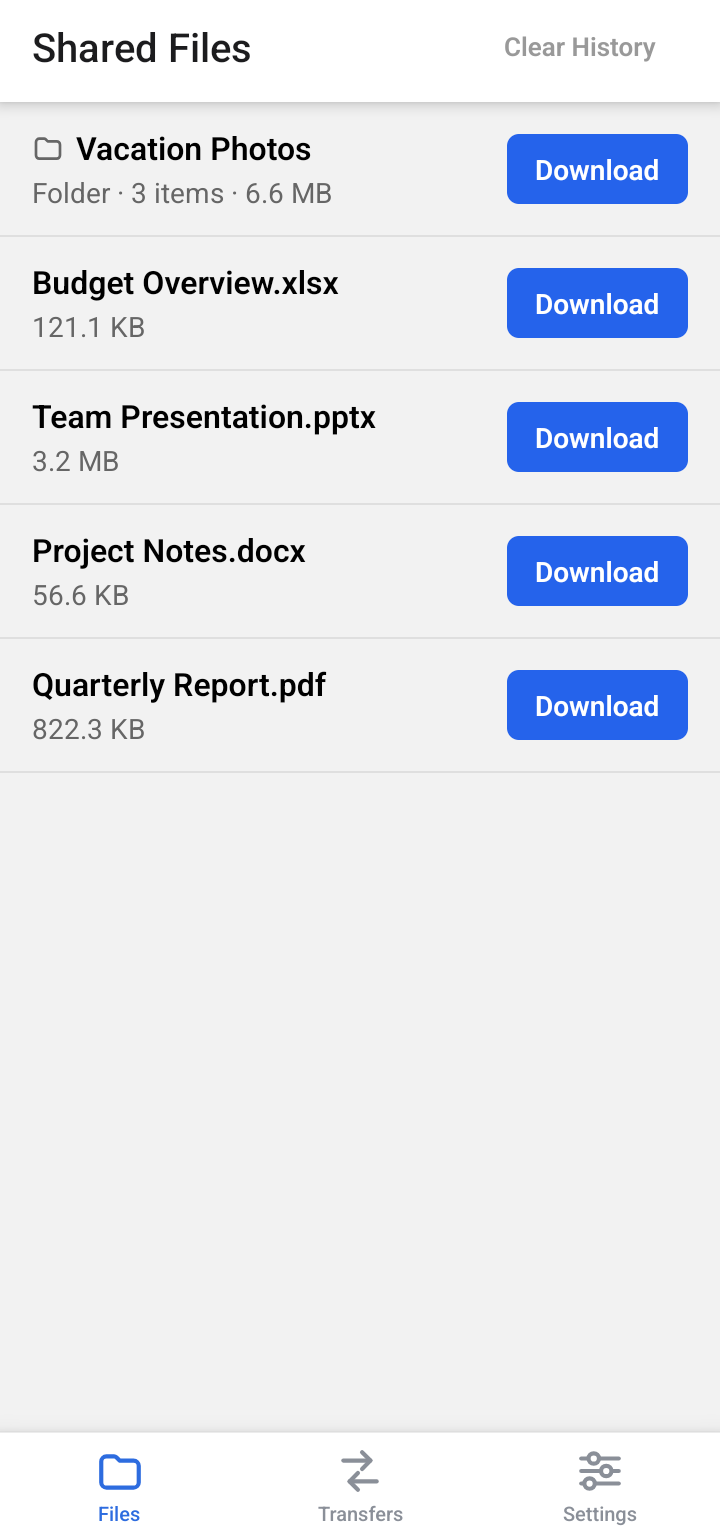
The desktop and Android apps side by side, both showing the same shared files.
What you can do with Relay
The capabilities behind pairing and transferring, once two devices are connected.
Files and folders
Send a single file, several files at once, or a complete folder with nested subfolders included, arriving with the same structure you picked. Works the same way in both directions, PC to phone or phone to PC.
-
File transfer
Send a single file directly to a paired device.
-
Folder transfer
Nested folders arrive exactly as you picked them.
-
Multiple files
Select several files and send them together.
-
Devices, handled
Relay finds nearby devices automatically, no IP address to type in. Rename a device from Settings, and if a phone ever loses track of its paired PC — say, after a new network or a different hotspot just forget it and pair again without reinstalling the app.
-
Stays on your network
Transfers move directly between your PC and phone over Wi-Fi or a mobile hotspot. Turn off network visibility from Settings any time you don't want your PC discoverable.
-
Shared files and history
See what you've shared, track transfer progress, cancel a transfer in progress, and clear your history whenever you want a clean slate.
Download Relay
Relay v1.0.0 for Windows and Android.
Relay for Windows v1.0.0
Windows desktop application · installer
Relay-Setup-1.0.0.exe · 119 MB
- Download the installer.
- Run the installer.
- Launch Relay.
- Pair it with the Android app.
Relay for Android v1.0.0
Direct APK download · no Play Store listing
Relay-1.0.0.apk · 95 MB
Android may ask you to allow installs from the source you used to download the APK — a normal step for an app installed outside Google Play. Play Protect may also scan the file before it installs.
Windows and Android downloads are published together as a GitHub Release, alongside a
SHA256SUMS.txt checksum file for verifying what you downloaded.
Releases on GitHub →
Requirements & compatibility
What you need to install and use Relay: a Windows PC, an Android phone, and one shared local network.
- Windows
-
Windows 10 or 11, 64-bit
Installs per-user, no administrator rights required. Relay uses your local network to reach your phone; allow access if Windows Firewall asks.
- Android
-
Android 8.0 or later
Installed directly from an APK, not from Google Play — you'll need to allow installs from the source you use to download it.
- Network
-
Same Wi-Fi network or mobile hotspot
Windows and Android connect directly to each other. No cloud storage and no internet server sit in between.
- Pairing
-
QR code scan, approved on the desktop
With both devices on the same network, Android scans a QR code shown by the desktop app, and desktop approves the connection before anything is trusted.
The Windows installer isn't code-signed yet, so Windows may show an “unrecognized publisher” warning the first time you run it. Relay is updated manually on both platforms, so download a newer version from this site and install it over the old one.